> ## Documentation Index
> Fetch the complete documentation index at: https://docs.gocromo.com/llms.txt
> Use this file to discover all available pages before exploring further.
# Add and manage Sources
> Upload authoritative material, follow processing, verify resulting Knowledge, and replace or remove Sources safely.
Use this guide to add authoritative material to a Project, follow it through processing, inspect the Knowledge it creates, and replace or remove it safely.
## What a Source is
A **Source** is the original evidence Cromo reads: a policy, procedure, spreadsheet, presentation, note, image, or synchronized file. Cromo preserves the Source while turning useful information into facts and Knowledge pages.
Use Sources for stable reference material. Put changing operational records—such as open renewals, tickets, or invoices—in [Data](/concepts/data-and-dashboards).
## Before you begin
You need the **Member**, **Admin**, or **Owner** role and membership in the target Project.
Prepare the file before uploading it:
* keep the title, owner, and effective date visible;
* remove obsolete drafts from the upload;
* split unrelated policies into separate files;
* check that scans, tables, and images are readable;
* remove content that belongs to another Project.
Source files can be up to 50 MB. See [Files and upload limits](/reference/files-and-upload-limits) for supported formats.
## Add a Source
### 1. Open Sources
1. Open the Project that should use the material.
2. In the sidebar, open **Knowledge**.
3. Select **Sources**.
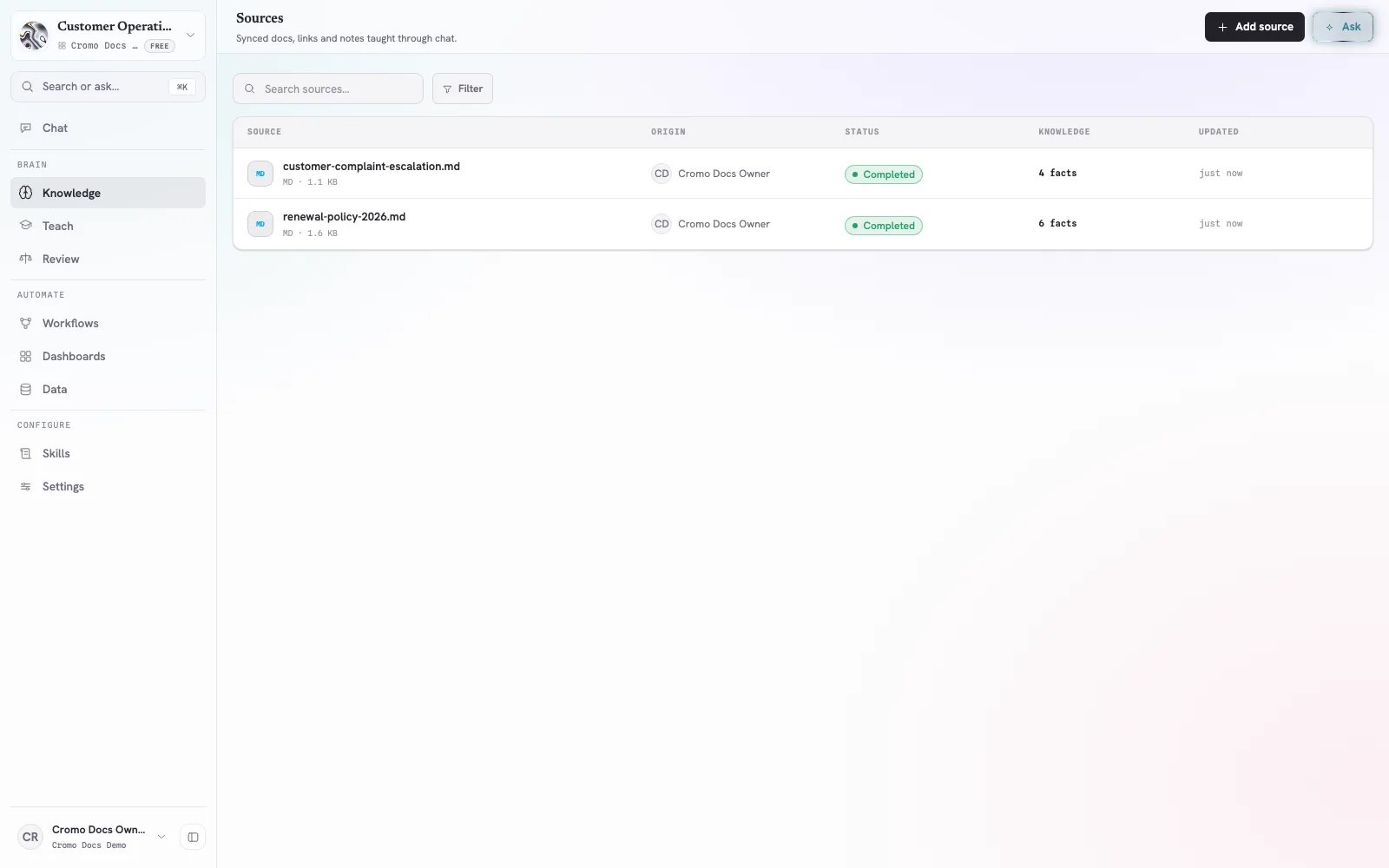
The Sources list shows the file name, origin, processing status, Knowledge facts, and last update.
 ### 2. Upload the file
Choose either method:
* select **Add source**, then choose one or more files;
* drag files from your computer onto the Sources page.
Each accepted file appears in the list immediately. You can continue working while Cromo processes it.
Upload one current, authoritative document first. It is easier to verify four facts from one policy than reconcile many overlapping drafts.
## Follow processing
The status column tells you what requires attention:
| Status | Meaning | What to do |
| ---------------- | ---------------------------------------------------------------------- | ---------------------------------------------------------------------------- |
| **Queued** | The file is waiting to be processed | Leave the file in the Project; processing starts automatically |
| **Updating** | Cromo is converting the file or compiling its facts | Wait for processing to finish |
| **Needs review** | One or more proposed Knowledge changes need a decision | Open **Knowledge → Review** |
| **Completed** | Processing finished and the resulting Knowledge decisions are complete | Inspect the fact count and resulting pages |
| Error message | Cromo could not complete a processing step | Open the Source, read the failed step, correct the file, and upload it again |
The fact count in the **Knowledge** column shows how many approved facts from that Source are available to the Project.
## Inspect a Source
Select a row to open its detail panel. Use it to:
* confirm the file name, type, size, and upload time;
* follow the journey from upload through conversion and compilation;
* preview the converted Source;
* open Knowledge pages created from the Source;
* open a pending candidate when a review decision is required.
The journey records concrete events such as **Uploaded**, **Converted to md**, **Compiled into facts**, **Fact approved**, and **Page created**.
### What to verify
For a policy or procedure, check:
* dates and monetary thresholds;
* owners and approvers;
* required evidence;
* exceptions and escalation paths;
* whether each fact belongs in this Project.
## Review Knowledge when required
When a Source shows **Needs review**:
1. Open **Knowledge → Review**.
2. Select the proposed page or update.
3. Compare each important statement with its Source references.
4. Approve correct content or reject unsupported content.
5. Return to **Sources** and confirm the Source reaches **Completed**.
Clear writing is not proof that a statement is correct. Check dates, amounts, owners, and exceptions against the Source before approving them.
After approval, open **Knowledge → Pages** to read the published page or **Knowledge → Graph** to explore its connections.
## Example: add a renewal policy
Suppose the file says:
* enterprise renewals above €100,000 start review 90 days before expiry;
* the Account Owner prepares the commercial proposal;
* Customer Success supplies a risk note;
* Legal reviews non-standard liability terms.
A good verification flow is:
1. Upload the current policy to **Knowledge → Sources**.
2. Wait for **Completed** or resolve any **Needs review** item.
3. Confirm that the Source contributed facts to Knowledge.
4. Open the resulting renewal page and check the threshold, timing, owners, and exception.
5. Ask Chat:
> For a €150,000 enterprise renewal with non-standard liability terms, when does review start, who contributes each document, and who must approve the exception? Cite the renewal policy.
6. Open the citations and compare the answer with the original Source.
## Replace an outdated Source
Do not overwrite history mentally by adding an unlabeled replacement.
1. Prepare the new file with a visible effective date.
2. Upload it as a new Source.
3. Check the proposed Knowledge changes and conflicts.
4. Verify the resulting page and a cited chat question.
5. Delete the old Source only after the new Source supports every rule the team still needs.
Name versioned files clearly, for example:
* `renewal-policy-2025-06.pdf`
* `renewal-policy-2026-01.pdf`
## Delete a Source
1. Select the Source row.
2. In the detail panel, select the trash icon.
3. Read the impact warning.
4. Confirm **Delete** only when the Source and its derived Knowledge are no longer needed.
Deleting a Source permanently removes it and any Knowledge derived from it. Add and verify a replacement first when the information must remain available.
## Troubleshooting
### The Source stays queued or updating
Open its detail panel and check the latest journey event. If processing reports a failure, correct the file and upload a new copy.
### The fact count is zero
Preview the converted Source and confirm it contains readable, useful statements. A blank scan, image-only document, or file with no durable Project knowledge may not produce facts.
### The wrong Project received the file
Delete it from that Project, then upload it to the correct one. Project Sources and Knowledge are isolated by Project membership.
### Chat does not use the new rule
Confirm that processing is complete, resolve any pending review, then ask with the relevant Knowledge page or Source attached. Include the exact outcome, scope, and rule you need.
## Source quality checklist
* [ ] The Source is current and authoritative.
* [ ] Its title, owner, and effective date are clear.
* [ ] It belongs in this Project.
* [ ] Processing reached Completed.
* [ ] Important facts and pages were inspected.
* [ ] Dates, thresholds, owners, and exceptions are accurate.
* [ ] A cited chat question returns the expected answer.
### 2. Upload the file
Choose either method:
* select **Add source**, then choose one or more files;
* drag files from your computer onto the Sources page.
Each accepted file appears in the list immediately. You can continue working while Cromo processes it.
Upload one current, authoritative document first. It is easier to verify four facts from one policy than reconcile many overlapping drafts.
## Follow processing
The status column tells you what requires attention:
| Status | Meaning | What to do |
| ---------------- | ---------------------------------------------------------------------- | ---------------------------------------------------------------------------- |
| **Queued** | The file is waiting to be processed | Leave the file in the Project; processing starts automatically |
| **Updating** | Cromo is converting the file or compiling its facts | Wait for processing to finish |
| **Needs review** | One or more proposed Knowledge changes need a decision | Open **Knowledge → Review** |
| **Completed** | Processing finished and the resulting Knowledge decisions are complete | Inspect the fact count and resulting pages |
| Error message | Cromo could not complete a processing step | Open the Source, read the failed step, correct the file, and upload it again |
The fact count in the **Knowledge** column shows how many approved facts from that Source are available to the Project.
## Inspect a Source
Select a row to open its detail panel. Use it to:
* confirm the file name, type, size, and upload time;
* follow the journey from upload through conversion and compilation;
* preview the converted Source;
* open Knowledge pages created from the Source;
* open a pending candidate when a review decision is required.
The journey records concrete events such as **Uploaded**, **Converted to md**, **Compiled into facts**, **Fact approved**, and **Page created**.
### What to verify
For a policy or procedure, check:
* dates and monetary thresholds;
* owners and approvers;
* required evidence;
* exceptions and escalation paths;
* whether each fact belongs in this Project.
## Review Knowledge when required
When a Source shows **Needs review**:
1. Open **Knowledge → Review**.
2. Select the proposed page or update.
3. Compare each important statement with its Source references.
4. Approve correct content or reject unsupported content.
5. Return to **Sources** and confirm the Source reaches **Completed**.
Clear writing is not proof that a statement is correct. Check dates, amounts, owners, and exceptions against the Source before approving them.
After approval, open **Knowledge → Pages** to read the published page or **Knowledge → Graph** to explore its connections.
## Example: add a renewal policy
Suppose the file says:
* enterprise renewals above €100,000 start review 90 days before expiry;
* the Account Owner prepares the commercial proposal;
* Customer Success supplies a risk note;
* Legal reviews non-standard liability terms.
A good verification flow is:
1. Upload the current policy to **Knowledge → Sources**.
2. Wait for **Completed** or resolve any **Needs review** item.
3. Confirm that the Source contributed facts to Knowledge.
4. Open the resulting renewal page and check the threshold, timing, owners, and exception.
5. Ask Chat:
> For a €150,000 enterprise renewal with non-standard liability terms, when does review start, who contributes each document, and who must approve the exception? Cite the renewal policy.
6. Open the citations and compare the answer with the original Source.
## Replace an outdated Source
Do not overwrite history mentally by adding an unlabeled replacement.
1. Prepare the new file with a visible effective date.
2. Upload it as a new Source.
3. Check the proposed Knowledge changes and conflicts.
4. Verify the resulting page and a cited chat question.
5. Delete the old Source only after the new Source supports every rule the team still needs.
Name versioned files clearly, for example:
* `renewal-policy-2025-06.pdf`
* `renewal-policy-2026-01.pdf`
## Delete a Source
1. Select the Source row.
2. In the detail panel, select the trash icon.
3. Read the impact warning.
4. Confirm **Delete** only when the Source and its derived Knowledge are no longer needed.
Deleting a Source permanently removes it and any Knowledge derived from it. Add and verify a replacement first when the information must remain available.
## Troubleshooting
### The Source stays queued or updating
Open its detail panel and check the latest journey event. If processing reports a failure, correct the file and upload a new copy.
### The fact count is zero
Preview the converted Source and confirm it contains readable, useful statements. A blank scan, image-only document, or file with no durable Project knowledge may not produce facts.
### The wrong Project received the file
Delete it from that Project, then upload it to the correct one. Project Sources and Knowledge are isolated by Project membership.
### Chat does not use the new rule
Confirm that processing is complete, resolve any pending review, then ask with the relevant Knowledge page or Source attached. Include the exact outcome, scope, and rule you need.
## Source quality checklist
* [ ] The Source is current and authoritative.
* [ ] Its title, owner, and effective date are clear.
* [ ] It belongs in this Project.
* [ ] Processing reached Completed.
* [ ] Important facts and pages were inspected.
* [ ] Dates, thresholds, owners, and exceptions are accurate.
* [ ] A cited chat question returns the expected answer.