
Before you automate
Run the task once in Chat with representative inputs. For example:Read the Renewals table. Find records due in the next 90 days, group them by account owner, flag high-risk records and records without a next action, and return a concise Markdown summary. Do not update any records.Compare the answer with the table and agree on the expected result with the process owner. Automation is ready when you can state:
- the input and its accepted type;
- the output and where it should appear;
- the data, Knowledge, files, or connectors it may use;
- every external side effect;
- what counts as a failure;
- who reviews failed runs.
Create the Workflow
Open Workflows in the Project sidebar.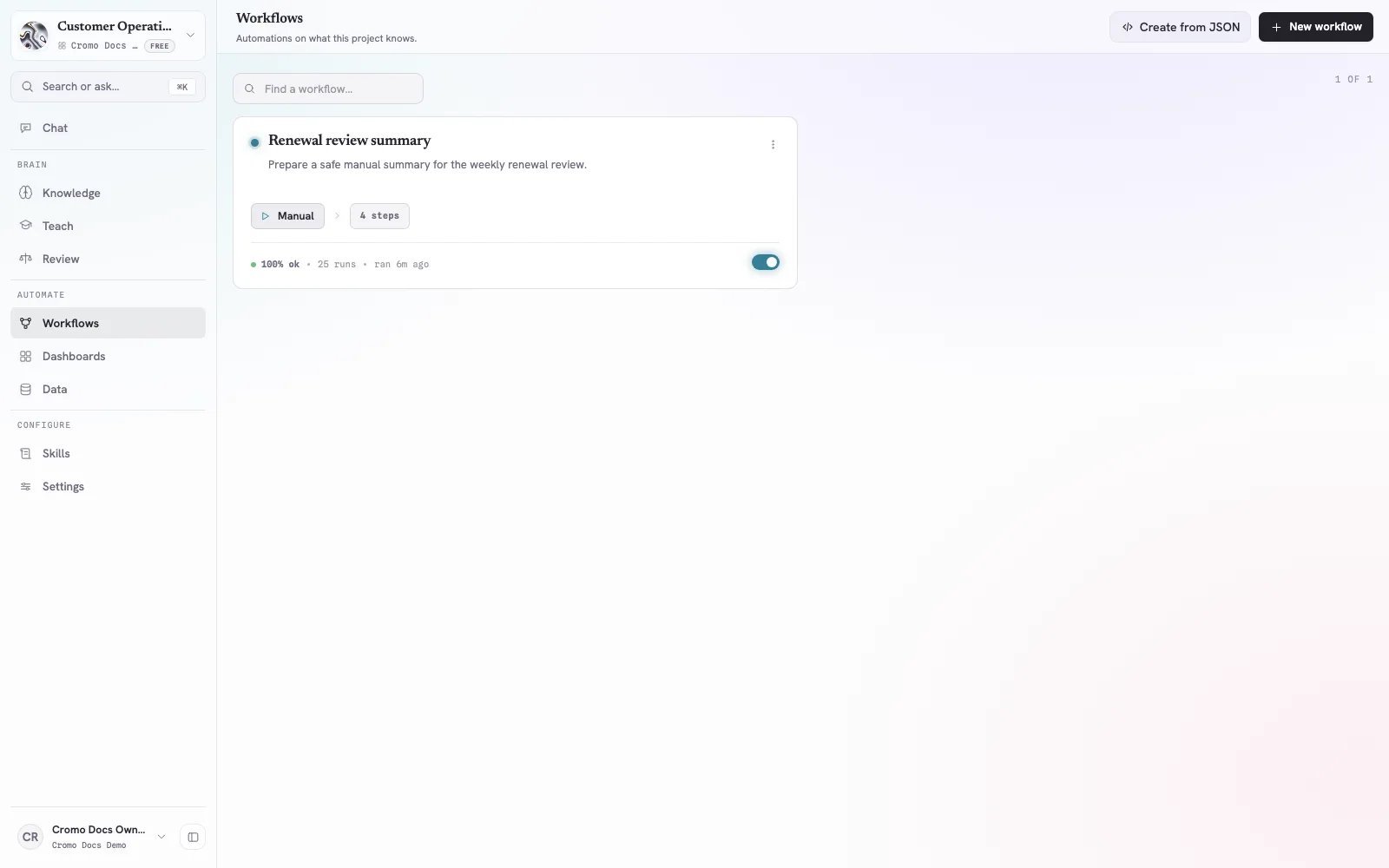
The Workflows page shows active automations, their trigger, health, recent runs, and activation state.
- Select New workflow to start a guided Chat request.
- Select Create from JSON when you already have a reviewed Workflow definition.
Inspect the definition
Open the Workflow from the list. The detail page contains:- Graph for execution order and connections;
- JSON for exact node configuration and mappings;
- Triggers for how a run starts;
- Recent runs for status, trigger, start time, and duration.
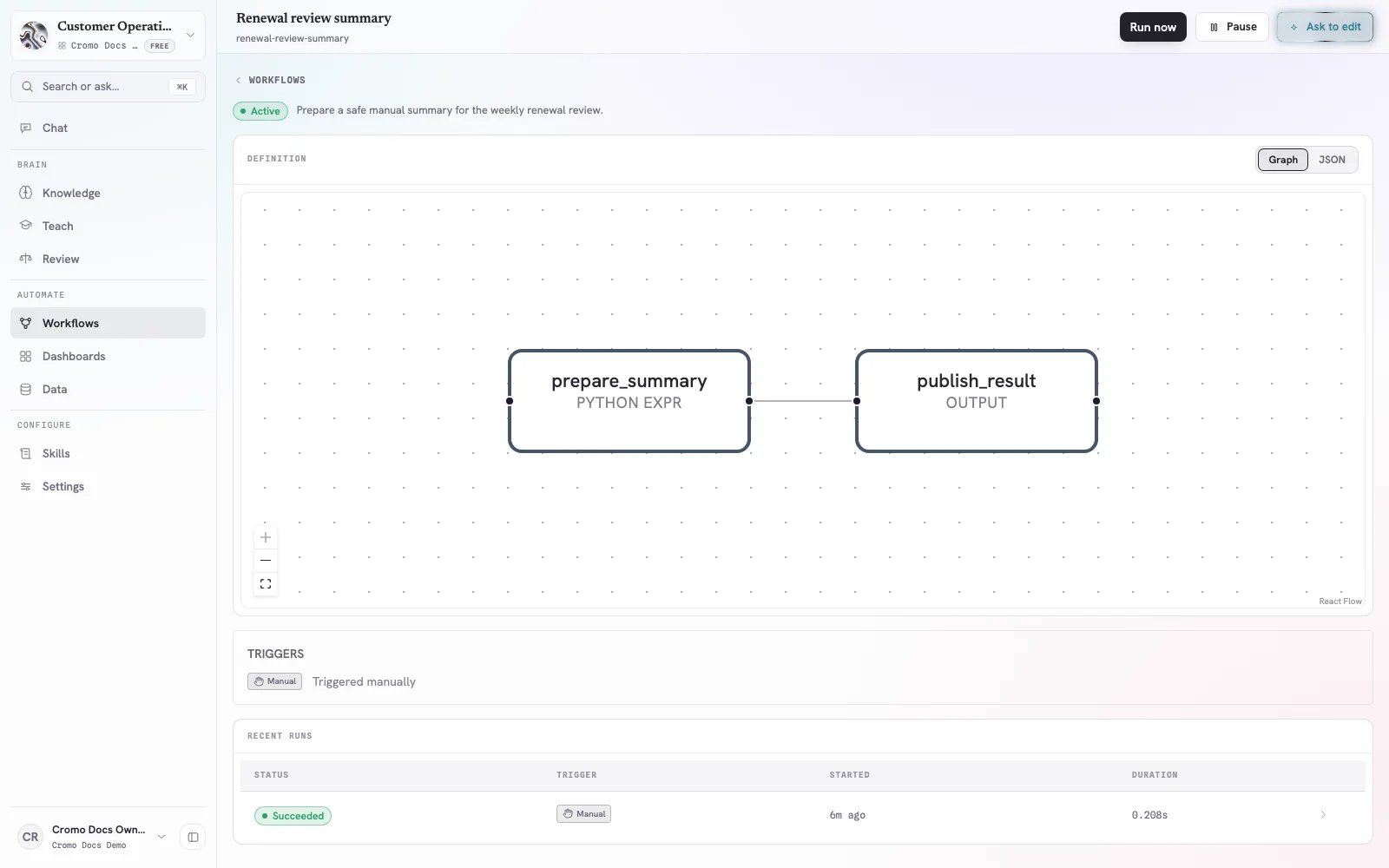
The Graph view shows execution order; Recent runs records the result of each execution.
- which input it receives;
- where each mapped value comes from;
- which tool, Data table, Knowledge page, file, or connector it can use;
- what output it produces;
- whether it changes internal or external data;
- what happens on failure or retry.
accountOwner and the next expects account_owner.
Ask for a change
Select Ask to edit. Describe one behavioral change and its acceptance condition. For example:If no renewals are due, return “No renewals require review” and skip file creation. Include the table name and as-of date in every failure message. Keep the Workflow manual.Reopen Graph and JSON after the edit. Confirm that unchanged branches and permissions remain intact.
Run a safe manual test
Select Run now. Cromo builds the input form from the Workflow definition.- Enter representative values rather than an empty happy path.
- Choose the intended Project file or reference when the form requests one.
- File inputs can be up to 10 MB each.
- Use copied or disposable records for a Workflow that writes data.
- Keep external writes disabled until read and mapping steps pass.
Inspect a run
After execution, select the row under Recent runs. Start with the overall status, then inspect nodes in order. Check:- resolved run arguments;
- each node’s input and output;
- skipped branches;
- retry attempts;
- generated files;
- connector responses;
- final output;
- external or Data-table changes.
Configure the trigger
Keep the Workflow manual until one representative run succeeds. The supported trigger types are:
For a schedule, write the timezone into the Workflow description. For a webhook, store its secret securely and rotate it if exposed.
Use Pause immediately when the process owner, input, credential, or output destination is no longer trustworthy.
Example acceptance tests
Before activating the renewal Workflow, run these cases:Troubleshooting
Run now does not show an expected input
Open JSON and confirm the input is declared in the Workflow contract. Ask Cromo to add it with a type and default, then inspect the new definition.A node receives an empty or wrong value
Compare the producing node’s output name with the consuming node’s input mapping. Check spelling, casing, optional values, and branches that can skip the producer.The Workflow cannot read a table, file, or Knowledge page
Confirm that the asset still exists in the same Project and that the person configuring the Workflow can open it. If it was renamed or replaced, use Ask to edit to update the reference.A connector operation is denied
Check the connection, credential, and Project access level. Read-only Project access cannot support a write operation. See Connect an app or MCP server.A run succeeded but the result is wrong
Treat this as a failed acceptance test. Compare node outputs with the source records, strengthen the instruction or mapping, and run a new manual test before leaving the Workflow active.A scheduled run did not happen at the expected time
Check that the Workflow is active, the trigger is a schedule, and its timezone and next run match the intended calendar time.Release checklist
- The manual process produced the approved result.
- Inputs and outputs are typed and named clearly.
- Graph and JSON describe the same intended flow.
- Data, Knowledge, files, and connectors are scoped to the Project.
- Side effects are limited and tested with reversible data.
- Empty, missing-data, dependency-failure, and duplicate cases were tested.
- One manual run completed with representative inputs.
- The trigger and timezone are correct.
- The process owner remains a Project member.
- Someone reviews failed runs and pauses unsafe Workflows.