
How access works
Cromo uses two access boundaries:
A person needs both Workspace membership and Project membership to open a Project. Their Workspace role determines what they can do after they enter it.
Inviting a new person adds them to the Workspace and to one initial Project. Add them to any other Projects separately.
Before you begin
You need the Admin or Owner role. The Workspace must contain at least one Project because every invitation includes an initial Project. Choose the role before sending the invitation:- Viewer for people who need to ask questions and read shared content.
- Member for everyday contributors who add Sources, review Knowledge, work with Data, and build automations.
- Admin for people who also manage members, settings, and connectors.
- Owner is not available in the invitation form. Ownership is reserved for existing Workspace owners.
Invite someone to the Workspace
1. Open Workspace settings
- In the lower-left corner of the sidebar, select your name.
- Confirm that the correct Workspace has a checkmark.
- Select Workspace settings.
- In the settings sidebar, select Members.
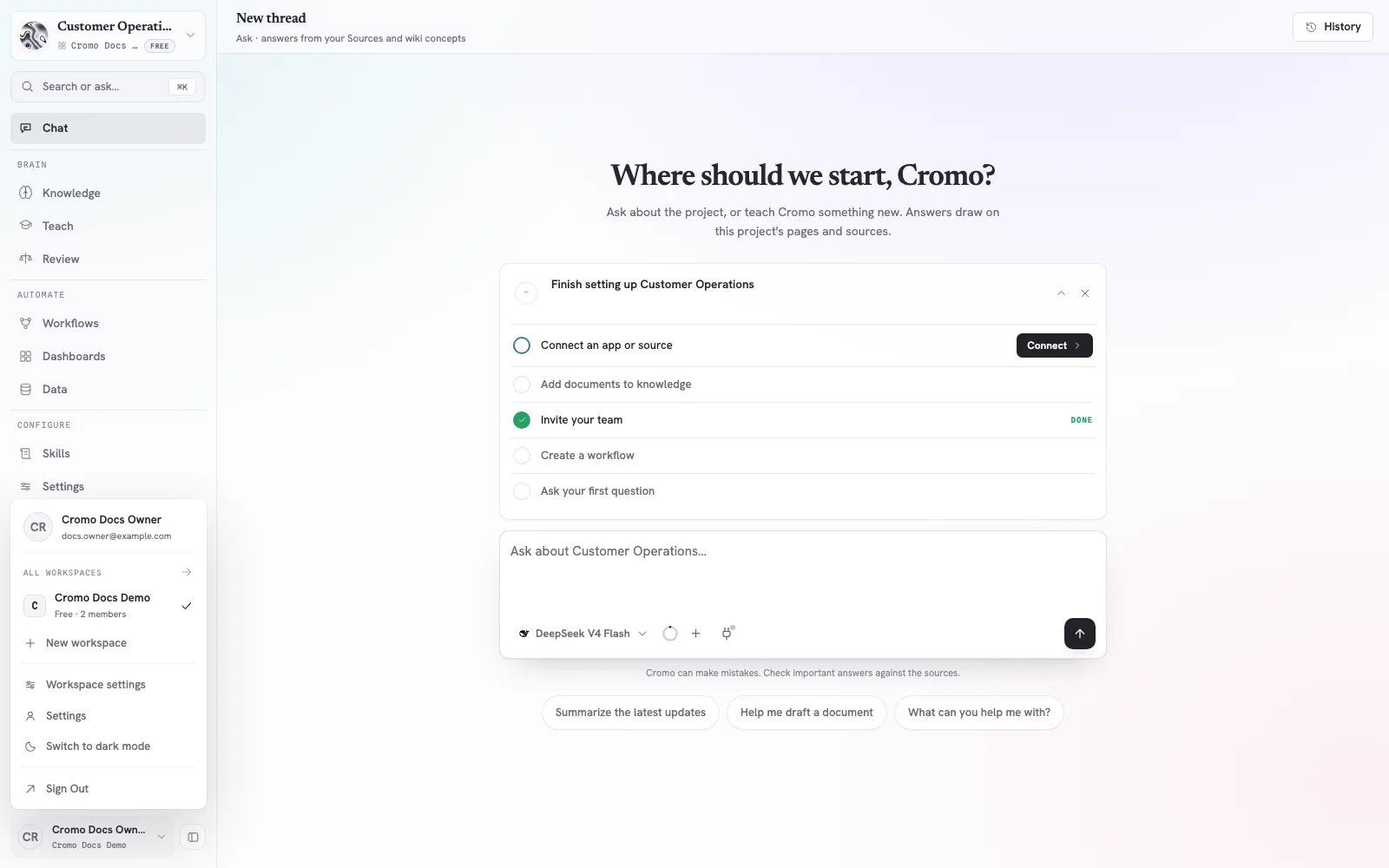
The account menu shows the active Workspace and the Workspace settings entry.
2. Review current members
The Members page shows each person’s name, email, and Workspace role. It also shows pending invitations below the active members.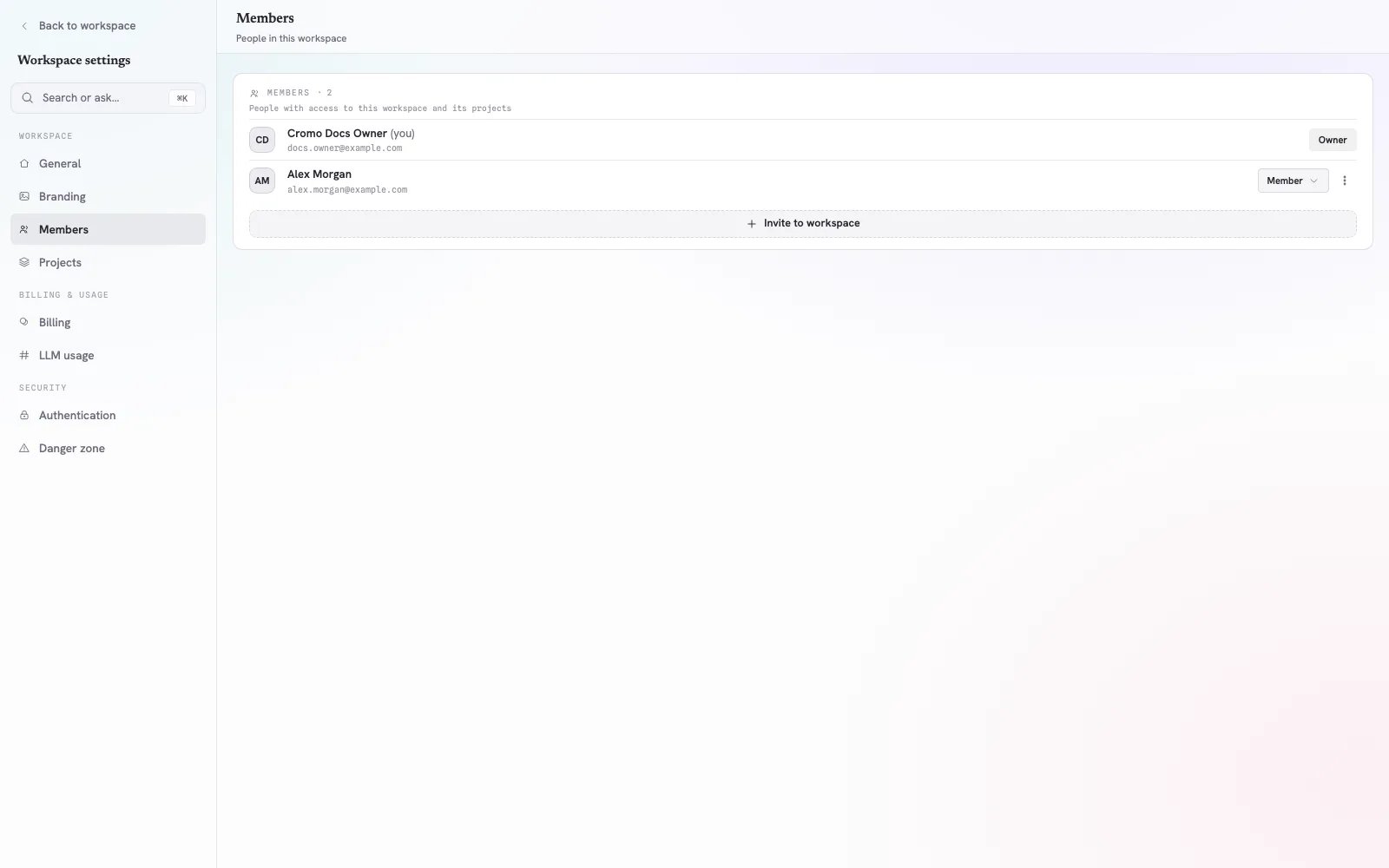
Workspace members and their roles are managed from Workspace settings.
3. Send the invitation
- Select Invite to workspace.
- Enter the colleague’s email address.
- Choose Viewer, Member, or Admin.
- Choose the first Project they should access.
- Select Invite.
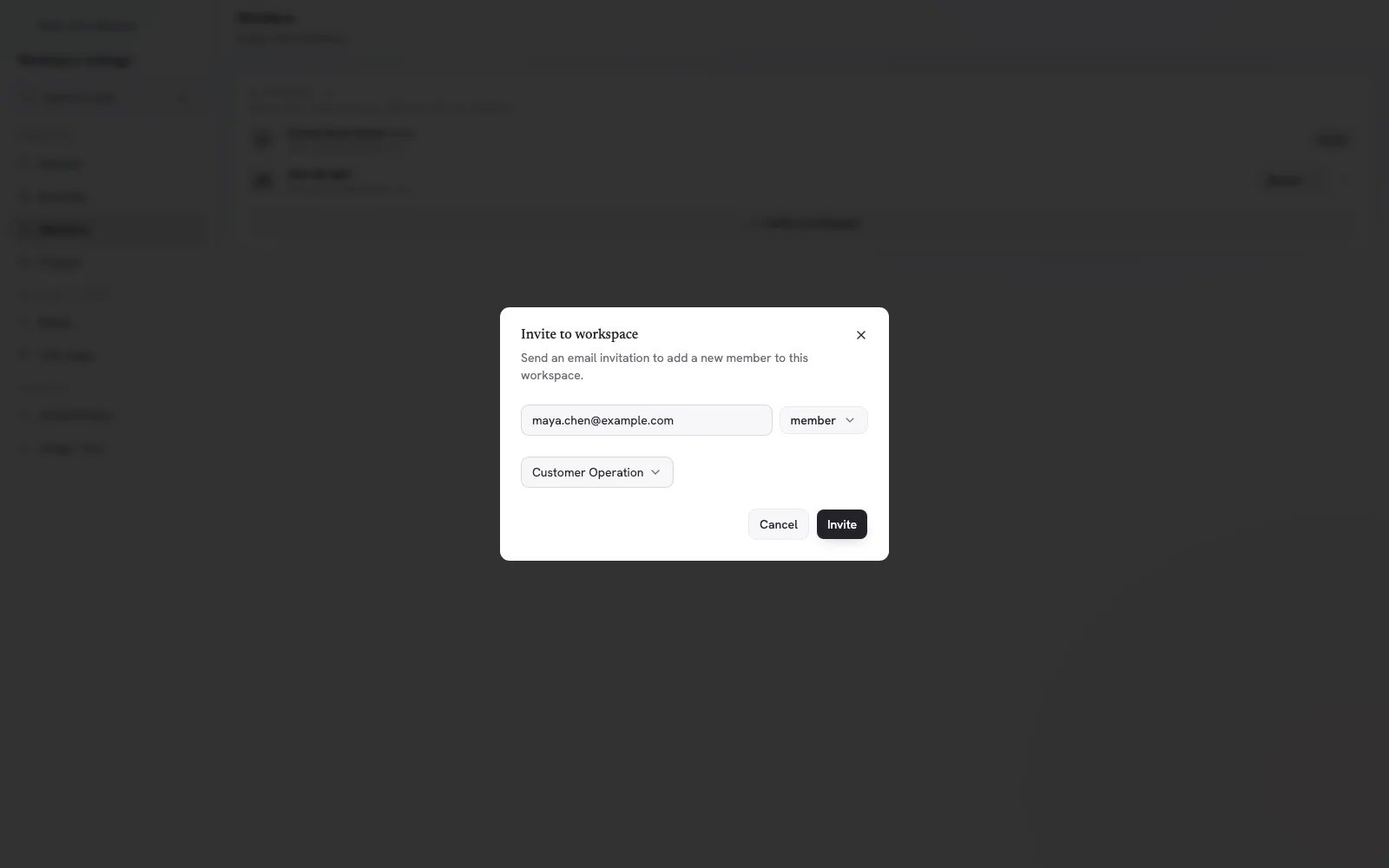
Every Workspace invitation includes a role and an initial Project.
Add an existing Workspace member to another Project
- Open the Project.
- Select Settings in the Project sidebar.
- Select Members under Project.
- Select Invite member.
- Choose a Workspace member from the list.
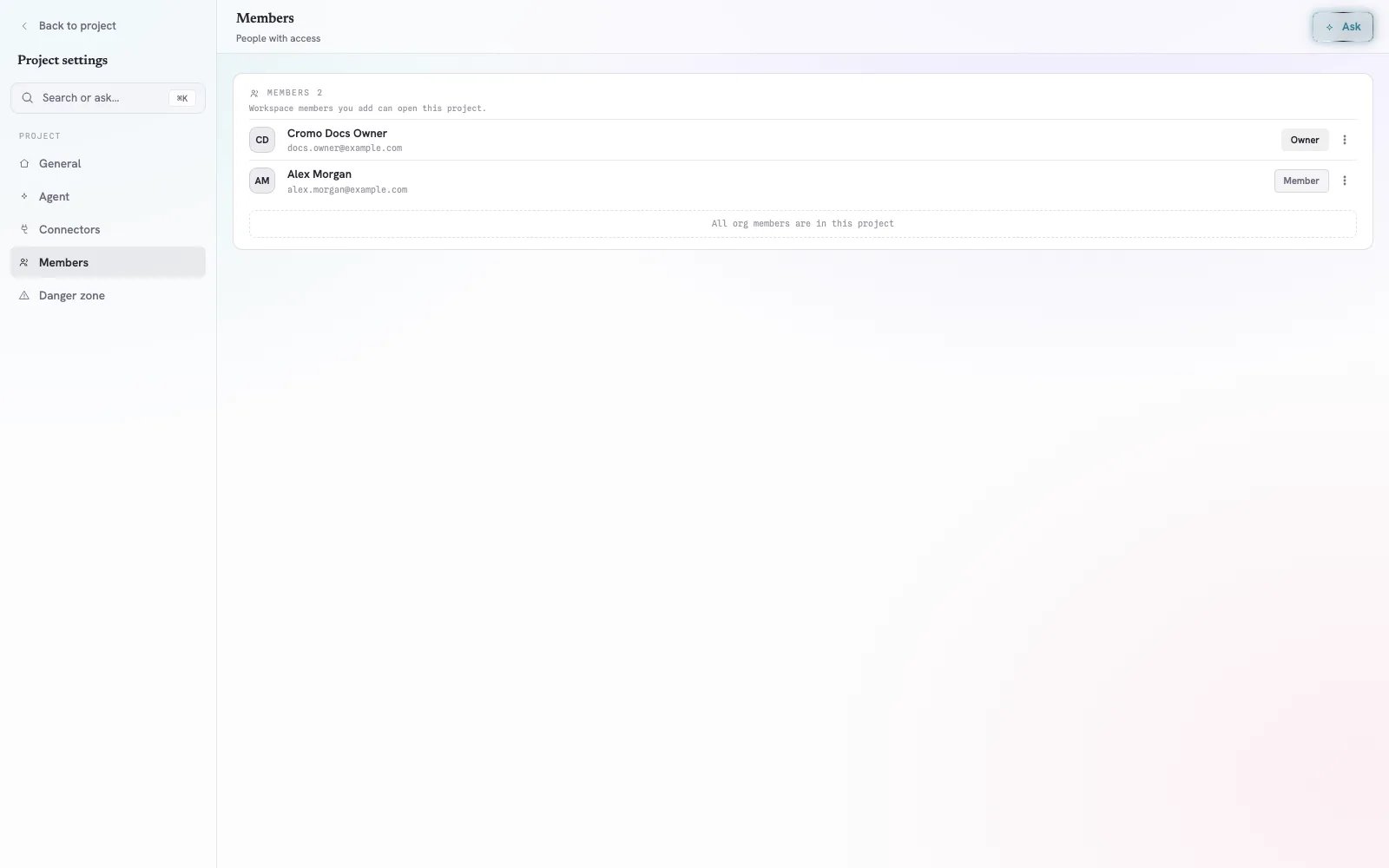
Project settings shows who can open the Project and each person's Workspace role.
Change a Workspace role
- Open Workspace settings → Members.
- Select the role next to the member.
- Choose Viewer, Member, or Admin.
Example
Maya joins the Customer Operations Project to monitor escalations:- Invite Maya as Viewer and choose Customer Operations.
- After Maya starts maintaining Sources, change her role to Member.
- If Maya later needs access to Sales Enablement, add her from that Project’s Members page.
Remove access
Choose the scope that matches your intent:
Cromo asks for confirmation before removing an active member. The last Workspace Owner cannot be removed.
Troubleshooting
I cannot see member controls
Only Admins and Owners can manage Workspace and Project membership. Ask a Workspace Admin or Owner to make the change.The colleague is in the Workspace but cannot open a Project
Add them from Project settings → Members. Workspace membership alone does not grant access to every Project.The colleague has access but cannot edit
Check their Workspace role. A Viewer can read Project content and use chat but cannot change shared operational assets.The invitation cannot be sent
Confirm that:- the email address is valid;
- an initial Project is selected;
- the Workspace has an available member seat;
- no invitation for the same person is already pending.
Access review checklist
- Every active member still needs Workspace access.
- Each member belongs only to the Projects required for their work.
- Viewers do not need edit permissions.
- Admins are responsible for access or configuration.
- At least one active Owner remains.
- Ownership of recurring work is reassigned before removal.