
Choose the connection type
A managed integration normally feeds external content into Sources. An MCP connection can also expose operations that read or change another system.
Before you begin
You need the Admin or Owner role and membership in the target Project. Prepare:- the external account or MCP credential;
- the exact files, folders, channels, repositories, or mail filters to include;
- an owner responsible for access reviews and credential rotation;
- a safe read-only test;
- one reversible write test if the connection must change external data.
Open Connectors
- Open the Project that will use the connection.
- Select Settings in the Project sidebar.
- Under Project, select Connectors.
- Choose Integrations or MCP.
Connect a managed application
1. Select the provider
Open the Integrations tab. Search by name or find the provider in Available Integrations, then select Connect.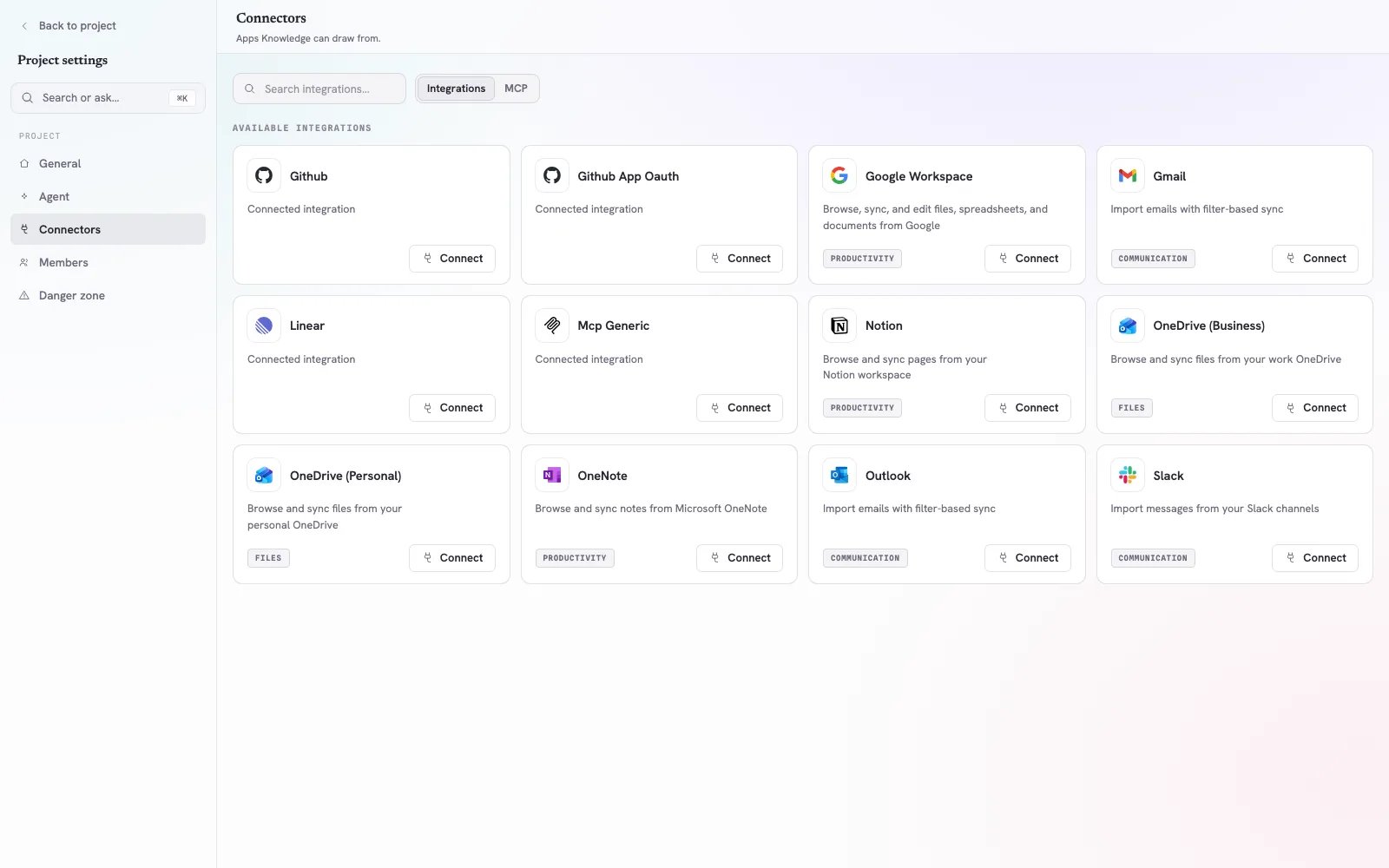
The Integrations tab lists managed applications and the action used to connect each one.
2. Authorize the intended account
Complete the provider’s authorization flow. Before approving access, verify:- the account name and email;
- the Workspace or tenant shown by the provider;
- the permissions requested;
- whether the account owns or can read the intended resources.
3. Select content and synchronization
Choose only the content that belongs in the Project. Depending on the application, this can include files, folders, pages, channels, repositories, or filtered email. Then configure synchronization:- use a narrow folder, channel, repository, or mailbox filter;
- exclude drafts, personal material, and unrelated departments;
- choose a cadence appropriate to how often the source changes;
- keep the external owner responsible for deleting or moving source content.
4. Verify imported content
Open Knowledge → Sources and locate the synchronized item. Check:- the Origin identifies the expected application;
- processing reaches Completed or presents a review item;
- the Source preview matches the current external content;
- important Knowledge facts preserve links to their evidence;
- a cited question in Chat returns the expected answer.
Connect an MCP server
1. Browse or add a server
Open the MCP tab. Use search to find a catalog entry, or select Add custom MCP for a private or custom server. Catalog badges identify how an entry is reached. For a custom connection, use a Streamable HTTP endpoint available to Cromo.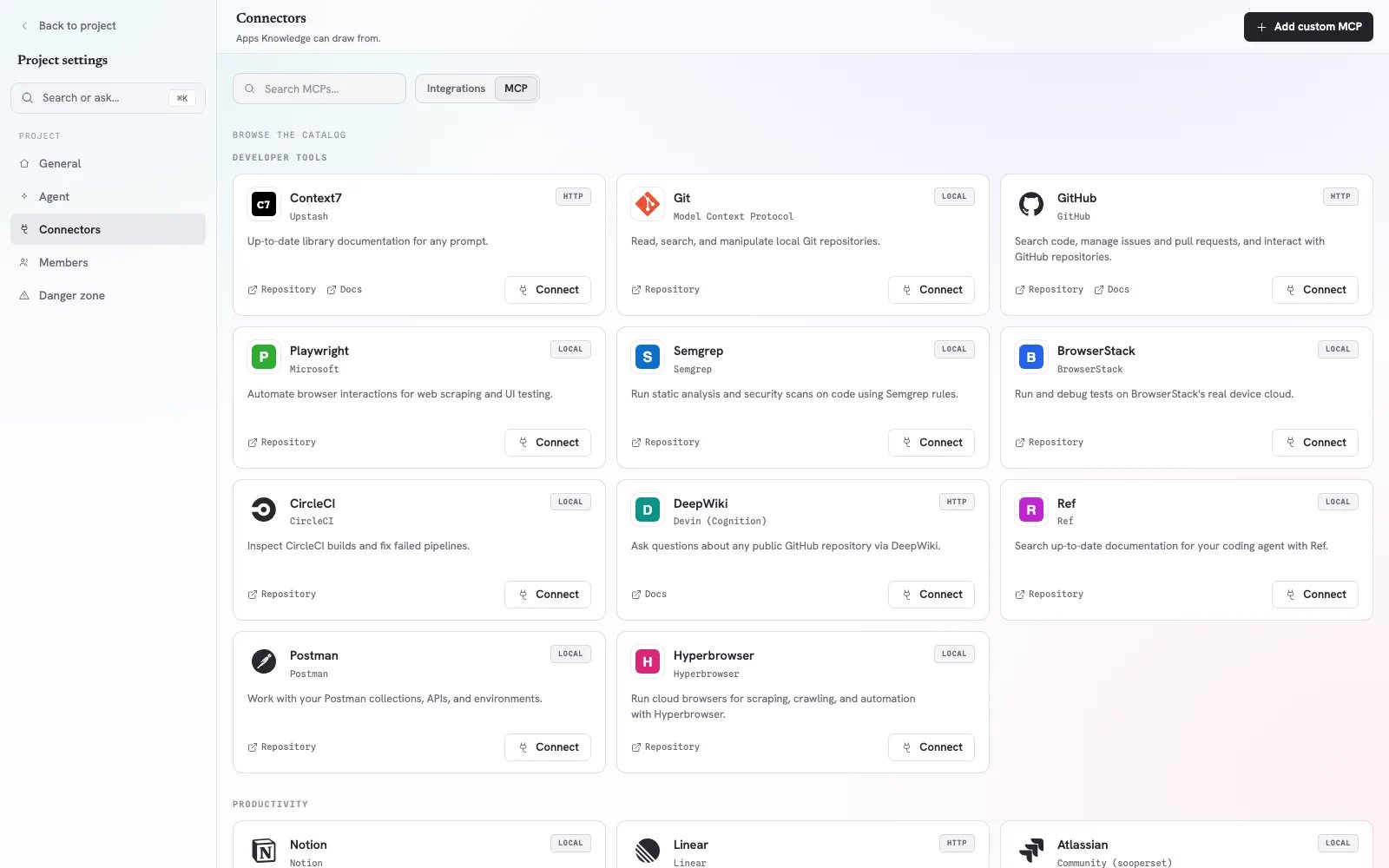
The MCP tab provides a searchable catalog and the Add custom MCP action.
2. Enter the custom connection
In Add custom MCP, provide:- Name — a recognizable operational name, such as
CRM — read only; - Server URL — the Streamable HTTP endpoint;
- Authentication — None, Bearer token, or Custom headers;
- Hide tools behind search — enable this when the server exposes many tools;
- any required credential or header values.
3. Test before saving
Select Test connection. A successful network test proves that Cromo can reach and authenticate to the server; it does not prove every operation is safe. After saving, inspect the discovered Tools, Resources, and Prompts. Confirm that their names and descriptions match the server you intended to connect.4. Run a least-privilege test
Test in this order:- list or inspect a harmless resource;
- read one known record;
- compare the response with the source system;
- if writes are required, create or update a disposable test record;
- confirm the exact external change;
- remove the test record if appropriate.
Control Project access
A connection is an operational permission. Workspace Admins and Owners control whether each Project has no access, read-only access, or full access to it. Use:- No access when the Project has no business need for the system;
- Read only for research, verification, and reporting;
- Full access only when a tested process must create or change external records.
Example: synchronize a renewal-policy folder
- Open Project settings → Connectors → Integrations.
- Connect Google Workspace with the operations service account.
- Select only the approved
Renewal Policiesfolder. - Enable synchronization.
- Open Knowledge → Sources and verify the imported policy.
- Resolve any Knowledge review item.
- Ask:
For a €150,000 renewal with a liability exception, identify the preparation steps and required approver. Cite the synchronized policy.
- Open the citation and compare it with the Drive file.
Troubleshooting
Authorization opens the wrong account
Cancel the provider flow, sign out of the unintended provider account, and reconnect. Verify the account identity before approving access.The connection succeeds but no Source appears
Return to the integration and confirm that at least one supported resource is selected. Check folder, channel, repository, or mail filters, then review Knowledge → Sources again.A synchronized Source is outdated
Confirm the external item still exists in the selected scope and that synchronization is enabled. If the owner moved or renamed it, update the resource selection.Test connection fails for a custom MCP
Check the full HTTPS URL, authentication method, token, and custom-header names. Confirm that the endpoint serves Streamable HTTP and is reachable outside your private computer.Tools are connected but Cromo chooses the wrong one
Improve the server’s tool names and descriptions. Enable Hide tools behind search when the server exposes many tools, then use a prompt that names the intended system and operation.A Member cannot use the connection
Confirm that the person belongs to the Project, has at least the Member role, and that the Project has read-only or full access to the connection.Connection review checklist
- The credential belongs to the intended work account.
- The selected content belongs in this Project.
- Access is read only unless writes are required.
- A known read returned the expected result.
- Any write test used a disposable or reversible record.
- Synchronized Sources and citations were inspected.
- Credential ownership and rotation are documented.
- Project access is reviewed when membership or responsibilities change.